
The SiteStakes Rank API, webhooks and MCP
Connect your own tools, Zapier, Make or an AI assistant to your account through the SiteStakes Rank API, webhooks and MCP, step by step.
What the API is, and why it matters to you
Your dashboard is how you see and run your account: you open it, read your results, approve a plan, move an article. An API (application programming interface) is the same thing for other software: a door into your account that programs can use — a reporting tool, a spreadsheet, an automation service like Zapier or Make, or an AI assistant like Claude. Instead of you copying numbers out of the dashboard, the program asks for them and gets them, any time, on its own. Instead of you pressing a button, the program can press it for you. Webhooks work the other way round: rather than a program asking, we tell it the moment something happens, like an article going live.
This matters most when you look after more than one website. Your clients’ numbers can flow straight into the reports you already send. Your team can get a message in Slack each time an article goes live. A missed payment can raise an alert in your own systems. You can ask an AI assistant “Which of my clients have a plan waiting for approval?” and get the answer in seconds. You don’t have to be a developer: Zapier, Make and AI assistants connect without code, and this guide shows every step. If you do write code, everything you need is below too.
What you can do
- List your websites, with their plan and their articles.
- Read any article, with its full text and pictures.
- Move an article to another day, give an article that isn’t written yet a new title, or skip an article that isn’t live.
- Approve a plan of articles that is waiting.
- Read results: Google clicks and impressions, visits from AI assistants, links from other websites.
- Download the growth reports as PDF.
- Read, apply and dismiss the suggestions for your website’s own pages.
- Hear about events the moment they happen (an article went live, a report is ready, a payment failed) through webhooks.
- Let an AI assistant such as Claude or Cursor do all of the above in plain words, through MCP.
The API, webhooks and MCP come with every account at no extra cost.
Before you start
- Only the account’s owner can make API keys and add webhooks. Team members and clients can’t.
- One key reaches every website in the account. If you look after clients’ websites, one key covers them all.
- You need nothing else: no plan upgrade, no approval from us.
Step 1: Make an API key
A key is a long password for programs. Every call a program makes carries it, so we know it’s allowed into your account.
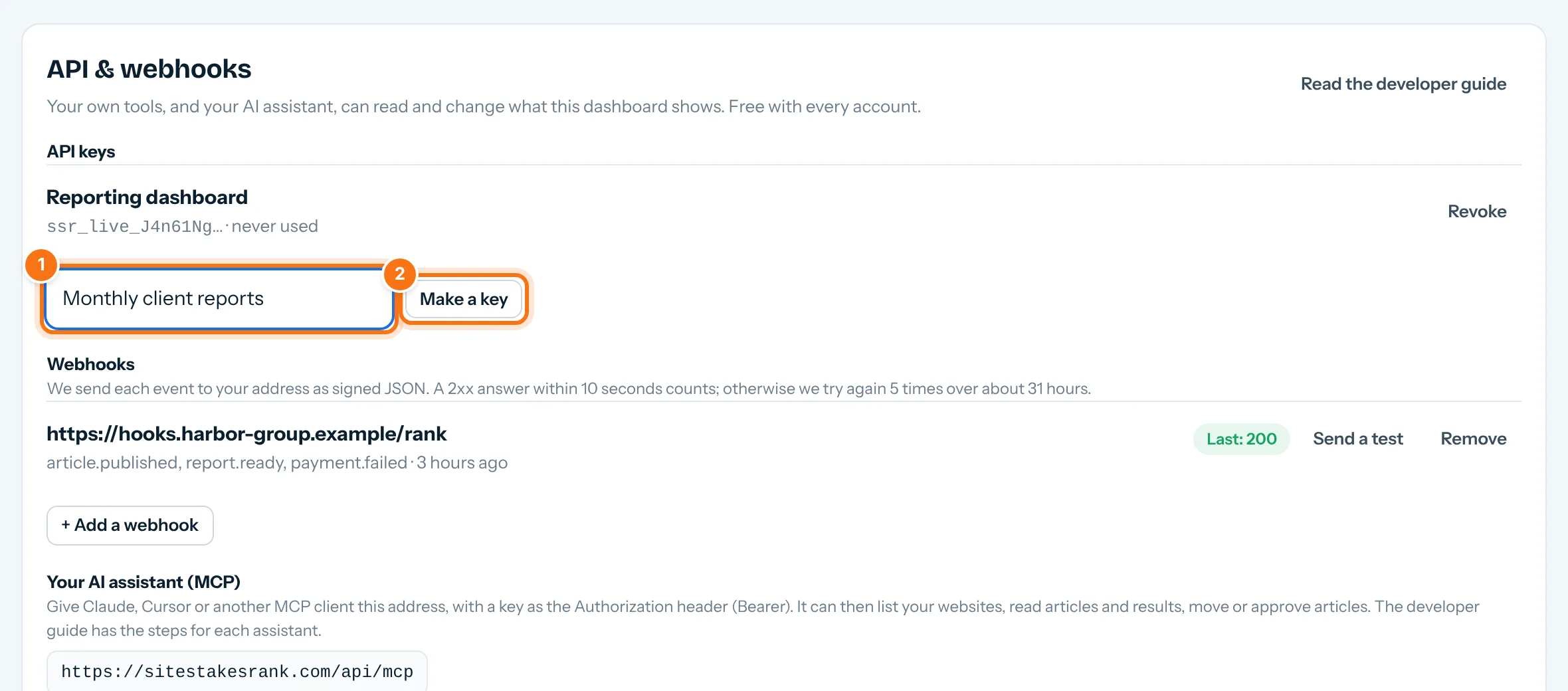
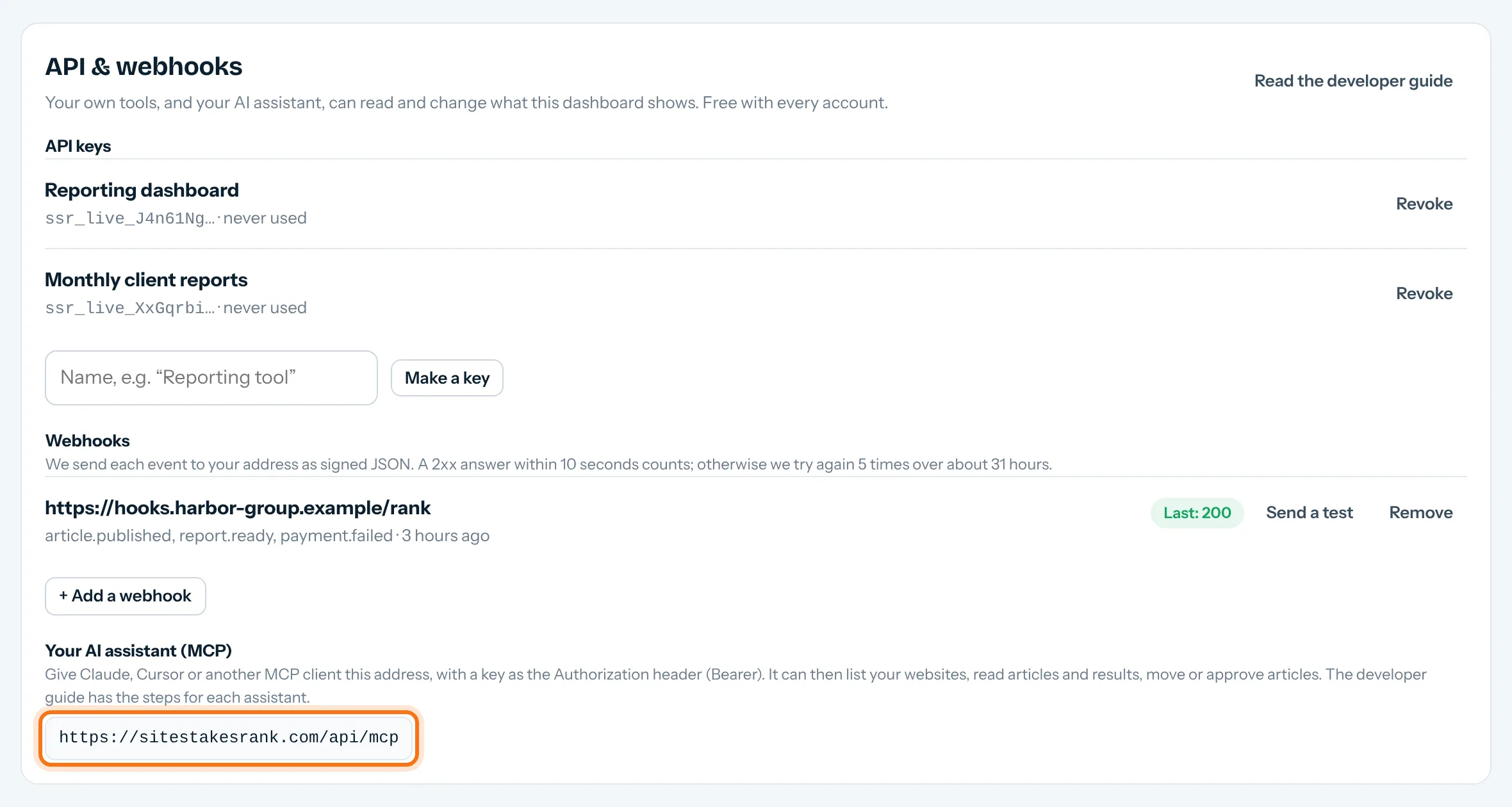
- Sign in to your dashboard and open Settings. Scroll down to API & webhooks.
- In the box under API keys, type a name that says where the key will be used, for example “Monthly client reports”.
- Press Make a key.
- Your new key appears in a green box. It starts with
ssr_live_. Press Copy and paste it somewhere safe, such as your password manager. - Press Done.
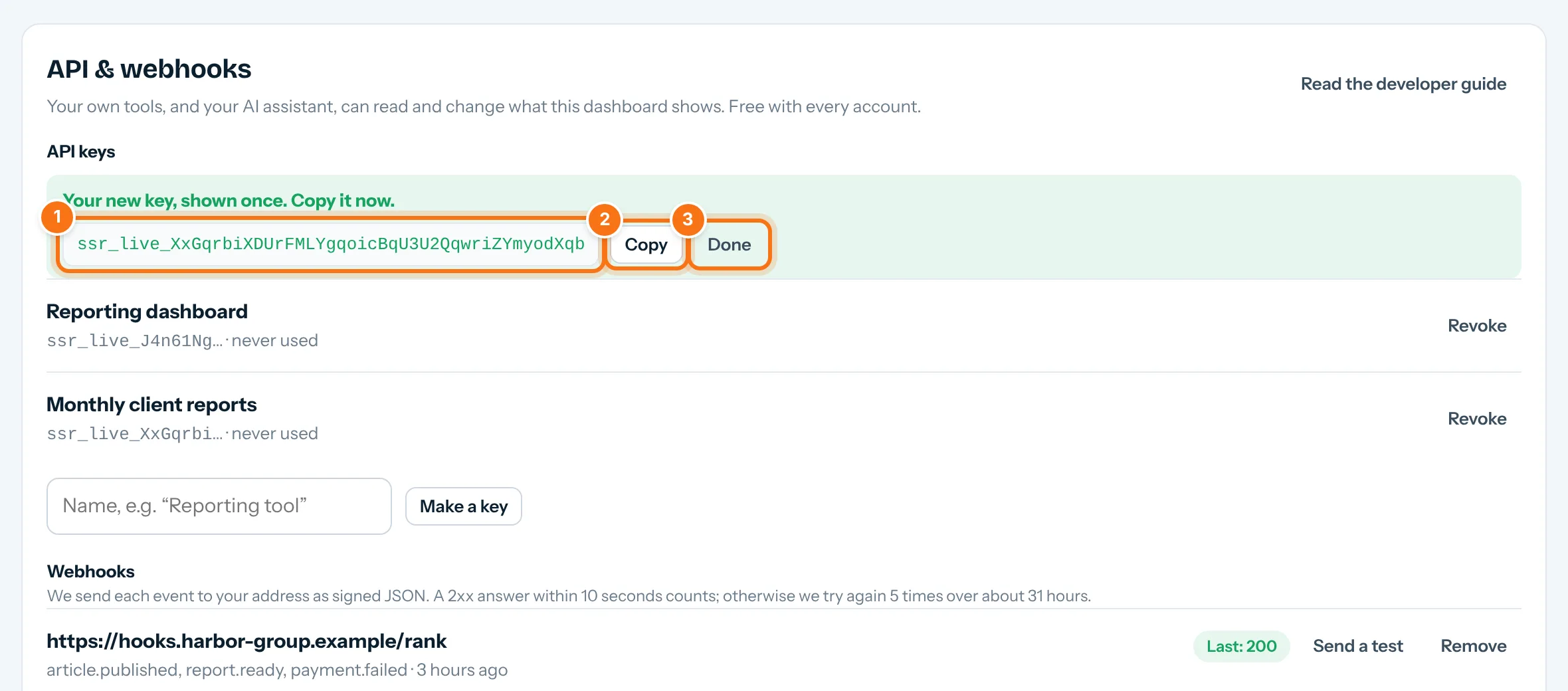
The key is shown only once. We keep only a fingerprint of it, so nobody, including us, can show it to you again. Lost it? Make a new one.
The list shows each key’s name, its first characters, when it was last used and how many calls it made today. An account can have 20 keys at a time.
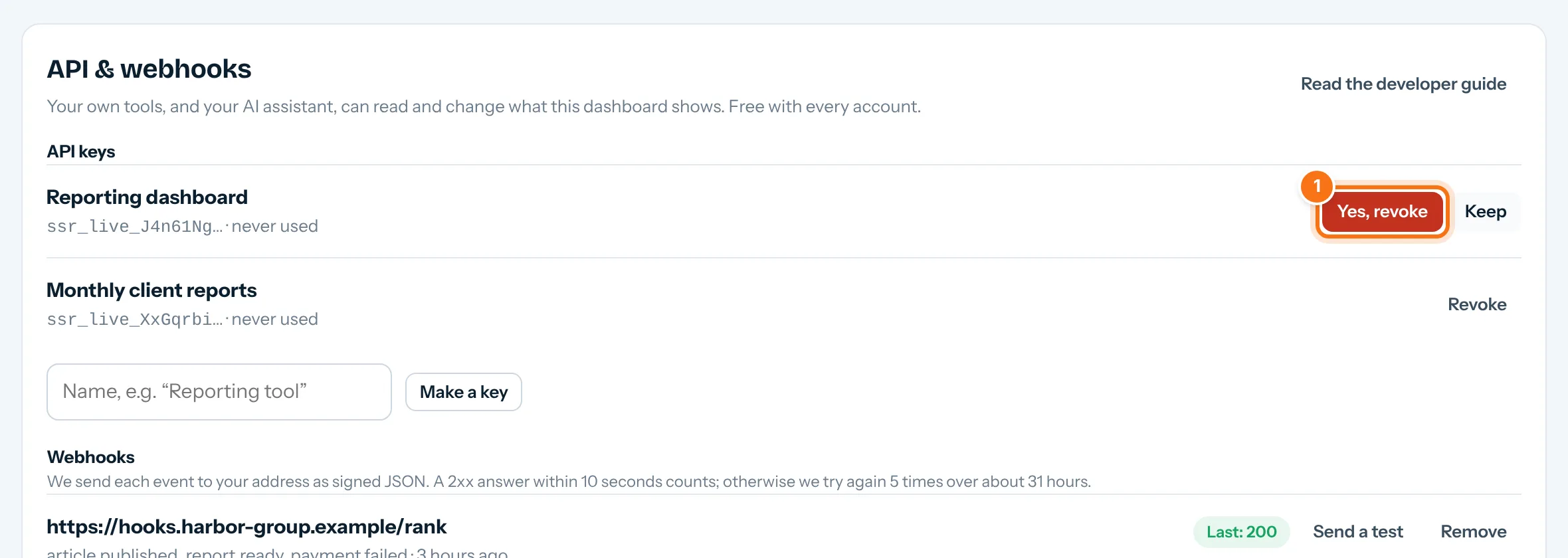
To stop a key working, press Revoke next to it, then Yes, revoke. Calls with it fail from that moment. Make a new key and put it in your tool.
Anyone with a key can read and change what your dashboard shows. Don’t put it in a web page, a public code repository or a browser script. Make one key per tool, named after it, so you can revoke one without breaking the others.
Step 2: Your first call
Every call sends the key in a header called Authorization: the word Bearer, a space, then the key. To try it, open a terminal (Terminal on a Mac, PowerShell on Windows) and paste this, with your key in place of ssr_live_YOUR_KEY:
curl https://sitestakesrank.com/api/v1/me \
  -H "Authorization: Bearer ssr_live_YOUR_KEY"
The answer names your account and your key:
{
    "account": {
        "id": 685,
        "name": "Harbor Bakery"
    },
    "key": {
        "id": 16,
        "name": "Monthly client reports",
        "prefix": "ssr_live_CKGuflv…"
    },
    "limits": {
        "calls_per_minute": 120
    }
}
If you see this, your key works. If you see unauthorized, check that the whole key is there, with Bearer and a space in front of it.
The basics
| What | How |
|---|---|
| Base address | https://sitestakesrank.com/api/v1 |
| Your key | The header Authorization: Bearer ssr_live_… on every call |
| Format | JSON, in and out. With a body, send Content-Type: application/json. |
| Times we send | ISO 8601 in UTC, for example 2026-11-20T17:20:00+00:00 |
| Days you send | YYYY-MM-DD, in the website’s own time zone (each website’s timezone is in its answer) |
| Lists of articles | 50 a page. Add page=2, page=3… The answer says page, pages and total. |
| Speed limit | 120 calls a minute per key |
| Every call, listed | GET https://sitestakesrank.com/api/v1 (no key needed) |
When something goes wrong
The HTTP status says what kind of problem it is. The body says exactly what, in words you can show a person:
{
    "error": {
        "code": "not_found",
        "message": "No website #99 on this account."
    }
}| Status | code | What it means | What to do |
|---|---|---|---|
| 401 | unauthorized | No key, a wrong key, or a revoked key | Check the header: Authorization: Bearer then the whole key. Make a new key if it was revoked. |
| 404 | not_found | The website, article, report, plan or suggestion isn’t in this account, or the address is wrong | Check the id. GET /sites lists your websites; GET /sites/{id}/articles lists the articles. |
| 422 | refused | The change can’t be made now. The message says why, for example “This article is already written.” | Read the message: it says what you can do instead. |
| 429 | rate_limited | More than 120 calls in a minute | Wait the number of seconds in the Retry-After header (60), then carry on. |
| 500 | error | Something went wrong on our side. It’s logged and we look at it. | Try again in a minute. If it keeps happening, contact us. |
Every call
In the examples, {id} is a website’s id and {article} an article’s id. Put real numbers in their place.
GET /sites — your websites
curl https://sitestakesrank.com/api/v1/sites \
-H "Authorization: Bearer ssr_live_YOUR_KEY"{
"sites": [
{
"id": 1678,
"name": "Harbor Bakery",
"url": "https://harbor-bakery.example",
"host": "harbor-bakery.example",
"language": "en",
"timezone": "America/Los_Angeles",
"platform": "wordpress",
"articles_per_month": 30,
"publishing": true,
"plan": {
"state": "active",
"label": "Active",
"billing": "yearly",
"next_charge_at": "2027-11-08T01:04:20+00:00",
"ends_at": null
},
"reference": "Client 1042",
"created_at": "2026-11-08T01:04:18+00:00"
}
]
}plan.state:active,trial,unpaid(a payment didn’t go through),cancelling(ends onends_at),ended,none(no plan yet) orstart(only the free growth plan so far).plan.label: the same in words, in your dashboard’s language.billing:monthly,yearly, ornullwithout a plan.reference: your own reference for the website (Plan & billing → On your receipts).
GET /sites/{id} — one website
The same fields, plus:
{
    "articles": { "live": 41, "scheduled": 22, "waiting": 0, "ready": 4 },
    "plan_waiting": {
        "id": 77,
        "articles": 30,
        "being_checked": 2,
        "auto_approve_at": "2026-11-12T09:00:00+00:00"
    },
    "connection": "connected",
    "blog": "own",
    "blog_url": ""
}articles: how many are live, scheduled (dated, not written yet), waiting for approval, and ready (written, waiting for their day).plan_waiting: a plan of articles waiting for approval, ornull.being_checkedarticles wait for our editors and aren’t part of the approval. Atauto_approve_atthe plan goes ahead by itself.connection:connected, ornot_connected(we can’t reach the website to publish).blog:own(the website’s own blog) orhosted(the blog we host);blog_urlis the hosted blog’s address.
GET /sites/{id}/articles — the articles
state is optional: live, scheduled (scheduled and ready, by date), waiting or skipped (skipped and removed). Without it you get all of them.
curl "https://sitestakesrank.com/api/v1/sites/1678/articles?state=scheduled&page=1" \
-H "Authorization: Bearer ssr_live_YOUR_KEY"{
"items": [
{
"id": 2732,
"title": "How much does a wedding cake cost?",
"state": "ready",
"main_keyword": "wedding cake cost",
"subtopics": ["wedding cake cost per slice"],
"publish_at": "2026-11-11T17:20:00+00:00",
"live_at": null,
"url": "",
"excerpt": "What decides the price of a wedding cake, with real ranges...",
"words": 1840,
"picture": "https://sitestakesrank.com/api/v1/sites/1678/articles/2732/picture",
"plan_id": 390,
"area": "Wedding cakes",
"can": { "edit": false, "move": true, "skip": true, "approve": false },
"needs_approval": false
}
],
"page": 1,
"pages": 1,
"total": 1
}An article’s state:
state | Means |
|---|---|
waiting | In a plan waiting for approval, or being checked by our editors |
dating | Approved; gets its day when the calendar is next filled |
scheduled | Has its day; not written yet |
ready | Written; waiting for its day |
held | On hold: the website can’t be reached, or a payment is due |
live | Published (see url and live_at) |
skipped | Skipped by a person; never goes live |
removed, gone | Removed before it was written |
picture is the article’s main picture (WebP). Download it with your key, like any other call. It’s empty while the article has none.
What can tells you:
edit: its title can change (it isn’t written yet).move: it can go to another day.skip: it can be skipped or removed.approve: it’s one of a new website’s first three articles, waiting for approval before it goes live.
GET /sites/{id}/articles/{article} — one article, with its text
The same fields, plus html: the article as HTML. Pictures inside the text point at https://sitestakesrank.com/api/v1/sites/{id}/pictures/…, which also need your key. To show the article somewhere else, download its pictures and keep them there.
PATCH /sites/{id}/articles/{article} — a new title or a new day
curl -X PATCH https://sitestakesrank.com/api/v1/sites/1678/articles/2733 \
  -H "Authorization: Bearer ssr_live_YOUR_KEY" \
  -H "Content-Type: application/json" \
  -d '{"day": "2026-11-20"}'
Send title, day, or both:
title: a new title, only for an article that isn’t written yet (can.editis true).day: the new day,YYYY-MM-DD, in the website’s time zone, within the next year. The time of day stays the same. Today, or a day that has passed, means “as soon as it can”: about two hours from now, the time it needs to reach the website. A written article already waiting on the website (in WordPress, for example) is sent again with its new date.
The answer is the article as it is now.
POST /sites/{id}/articles/{article}/skip — skip an article
An article that’s written but not live is skipped, and the next one takes its day. An article that isn’t written yet is removed. A live article can’t be skipped (422).
POST /sites/{id}/plans/{plan}/approve — approve a waiting plan
The plan’s id is in plan_waiting of GET /sites/{id}. The answer says how many articles got their days, and how many still wait for our editors:
{
    "approved": { "approved": 28, "waiting_flagged": 2, "slots": 28, "from": "2026-11-10", "to": "2026-12-09" }
}
GET /sites/{id}/results — results
{
    "results": {
        "search_console": true,
        "published": 41,
        "seen_on_google": 33,
        "clicks_28d": 412,
        "impressions_28d": 18950,
        "previous_clicks_28d": 268,
        "previous_impressions_28d": 12110,
        "period_end": "2026-11-07",
        "links_in": { "live": 6, "coming": 2 },
        "ai_visits": {
            "days": 30,
            "reads_by_ai": 214,
            "visitors_from_ai": 19,
            "platforms": [{ "name": "ChatGPT", "n": 12 }],
            "companies": [{ "name": "OpenAI", "n": 120, "live": 31 }]
        },
        "articles": [
            { "title": "How to keep a sourdough starter alive", "url": "https://harbor-bakery.example/blog/sourdough-starter/", "live_at": "2026-11-03T17:33:32+00:00", "clicks": 37, "impressions": 2104, "position": 6.4 }
        ]
    }
}- The
_28dfigures come from Google Search Console and arenulluntil the website connects it.previous_is the 28 days before. links_in: links from other websites’ articles to this one, live and on their way.ai_visits: the last 30 days.reads_by_ai: AI companies’ bots reading the website.visitors_from_ai: people who came from an AI assistant.liveundercompanies: reads made to answer someone’s question right then.
GET /sites/{id}/reports — growth reports
{
    "reports": [
        { "id": 12, "number": 2, "made_at": "2026-11-09T08:00:00+00:00", "articles": 30, "searches": 12480,
          "pdf": "https://sitestakesrank.com/api/v1/reports/12.pdf",
          "page": "https://sitestakesrank.com/api/v1/reports/12.html" }
    ]
}
GET /reports/{report}.pdf downloads the PDF; GET /reports/{report}.html returns it as a web page. Both need your key.
GET /sites/{id}/suggestions — suggestions for the website’s own pages
status is optional: open (the default), applied, dismissed or all.
{
    "suggestions": [
        {
            "id": 13,
            "kind": "redirect",
            "page_url": "https://harbor-bakery.example/blog/sourdough-starter-guide/",
            "page_title": "How to keep a sourdough starter alive",
            "current": "https://harbor-bakery.example/blog/sourdough-starter-guide/",
            "suggested": "https://harbor-bakery.example/blog/sourdough-starter/",
            "reason": "Both pages show on Google for \"sourdough starter\" (1,380 impressions in 28 days)...",
            "numbers": { "query": "sourdough starter", "impressions": 1380 },
            "status": "open",
            "can_apply": true,
            "can_undo": false,
            "steps": ["..."]
        }
    ]
}kind:title(a clearer SEO title),description(a clearer meta description),redirect(two pages compete: send the weaker one to the stronger) orseparate(two pages compete and both should stay:stepssays what to do).POST /sites/{id}/suggestions/{suggestion}/applymakes the change on the website. It works when the website has the SiteStakes Rank plugin 2.11 or later, or uses the blog we host. Otherwise the answer is 422, with what to do.POST /sites/{id}/suggestions/{suggestion}/dismissputs it aside.- Undo is in the dashboard (Results → Your pages).
Webhooks, through the API
| Call | What it does |
|---|---|
GET /webhooks | Your webhooks (without their secrets) |
POST /webhooks with {"url": "...", "events": ["..."]} | Adds one. The answer (201) holds its secret, shown only this once. |
PATCH /webhooks/{webhook} with events and/or active | Changes its events, or switches it off (false) or on (true) |
DELETE /webhooks/{webhook} | Removes it |
GET /webhooks/{webhook} | Its last 20 deliveries |
POST /webhooks/{webhook}/test | Sends a test event now and says how your address answered |
GET /events | The event names |
Webhooks: hear about events as they happen
A webhook is an address of yours, starting with https://, that we call each time something happens. Zapier and Make give you such an address in a minute (see “Zapier and Make” below); a developer can make one on your own server.
Add a webhook
- Dashboard → Settings → API & webhooks → + Add a webhook.
- In Address (https://), paste the address. It must start with
https://and be reachable from the internet. - Under Events, untick the events you don’t want. All of them are ticked to start with.
- Press Add.

- A green box shows the webhook’s signing secret, starting with
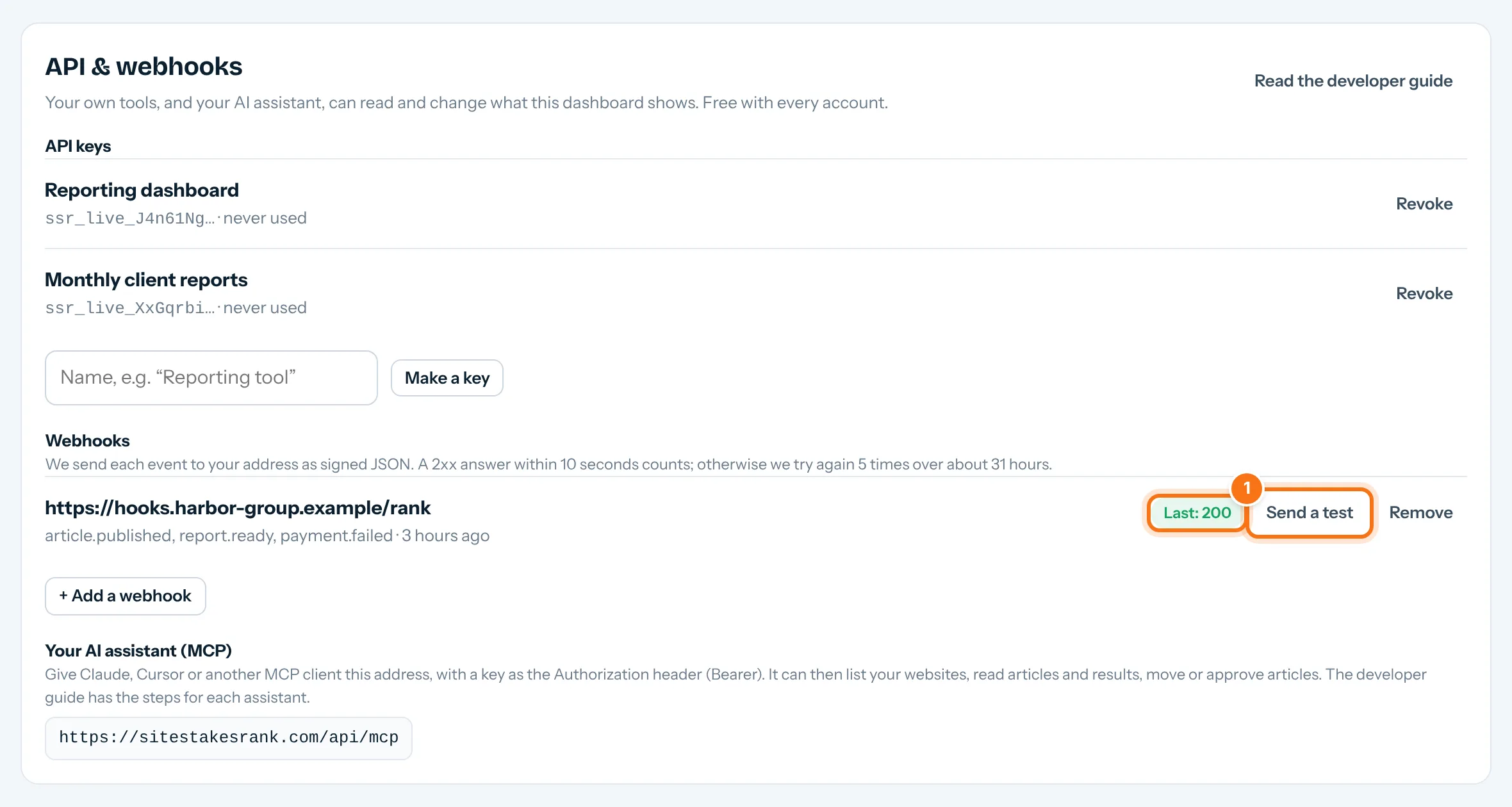
whsec_. Press Copy and keep it with the address: you need it to check that a call really comes from us. It’s shown only once. - Press Done, then Send a test next to the webhook. The line shows Last: 200 when your address answered.
An account can have 20 webhooks.
What we send
A POST to your address, with these headers:
POST /your-address HTTP/1.1
Content-Type: application/json
User-Agent: SiteStakesRank-Webhooks/1.0
X-Rank-Event: article.published
X-Rank-Delivery: 8123
X-Rank-Signature: t=1731110400,v1=5f3a9c...
And this body:
{
    "id": 8123,
    "event": "article.published",
    "at": "2026-11-09T10:00:00+00:00",
    "site": { "id": 1678, "name": "Harbor Bakery", "url": "https://harbor-bakery.example" },
    "data": { ... }
}
id is the delivery’s number. It’s the same on every retry of that delivery, so you can use it to do nothing the second time.
The events and what data holds
| Event | When | data |
|---|---|---|
plan.ready | A new plan of articles is waiting for approval | {"plan": {"id", "articles", "auto_approve_at"}} |
plan.approved | A plan was approved (by a person or by itself) | {"plan": {"id", "approved", "waiting", "by", "from", "to"}}; by is person or auto |
article.written | An article was written and waits for its day | {"article": {...}}, as in the articles list |
article.published | An article went live | {"article": {...}}, with url and live_at |
article.moved | An article was moved to another day | {"article": {...}, "from": ...}; from is the old time |
article.skipped | A person skipped or removed an article | {"article": {"id", "title", "how"}}; how is skipped or removed |
report.ready | A growth report is ready | {"report": {"id", "number", "plan", "pdf"}} |
suggestion.new | A new suggestion for one of the website’s pages | {"suggestion": {...}}, as in the suggestions list |
payment.failed | A payment for one of the websites didn’t go through | {"amount", "attempt", "next_try", "plan_ends"} |
test | You pressed Send a test | {"message"}; site is null |
Check that a call comes from us
The header X-Rank-Signature holds t (when we signed it, in seconds) and v1 (the signature). v1 is the HMAC-SHA256, in hex, of the text t + . + the body exactly as you received it, made with your webhook’s secret. Work it out yourself and compare. Also refuse a call whose t is more than 5 minutes old, so a recorded call can’t be sent again later.
Use the raw body, before any JSON parsing: parsing and re-encoding changes the text, and the signature won’t match.
const crypto = require('crypto');
const express = require('express');
const app = express();

app.post('/rank-webhook', express.raw({ type: 'application/json' }), (req, res) => {
  const header = req.get('X-Rank-Signature') || '';
  const parts = Object.fromEntries(header.split(',').map(p => p.split('=')));
  const body = req.body.toString('utf8');
  const expected = crypto.createHmac('sha256', process.env.RANK_WEBHOOK_SECRET)
    .update(parts.t + '.' + body).digest('hex');
  const fresh = Math.abs(Date.now() / 1000 - Number(parts.t)) < 300;
  const same = parts.v1 && parts.v1.length === expected.length
    && crypto.timingSafeEqual(Buffer.from(parts.v1), Buffer.from(expected));
  if (!fresh || !same) return res.status(401).send('bad signature');

  const event = JSON.parse(body);
  res.status(200).send('ok');           // answer first...
  handle(event);                        // ...then do the work
});<?php
$body = file_get_contents('php://input');
parse_str(str_replace(',', '&', $_SERVER['HTTP_X_RANK_SIGNATURE'] ?? ''), $p);
$expected = hash_hmac('sha256', ($p['t'] ?? '') . '.' . $body, getenv('RANK_WEBHOOK_SECRET'));
if (abs(time() - (int) ($p['t'] ?? 0)) > 300 || !hash_equals($expected, $p['v1'] ?? '')) {
http_response_code(401);
exit('bad signature');
}
$event = json_decode($body, true);
http_response_code(200);
echo 'ok';import hmac, hashlib, os, time
from flask import Flask, request, abort
app = Flask(__name__)
@app.post("/rank-webhook")
def rank_webhook():
body = request.get_data()
parts = dict(p.split("=", 1) for p in request.headers.get("X-Rank-Signature", "").split(",") if "=" in p)
expected = hmac.new(os.environ["RANK_WEBHOOK_SECRET"].encode(), (parts.get("t", "") + ".").encode() + body, hashlib.sha256).hexdigest()
if abs(time.time() - int(parts.get("t", 0))) > 300 or not hmac.compare_digest(expected, parts.get("v1", "")):
abort(401)
event = request.get_json()
return "ok", 200Answer quickly
Answer with any status from 200 to 299 within 10 seconds. Do the slow work after answering, or put it in a queue. An answer that’s slower, another status, or no answer at all counts as a failure.
When your address doesn’t answer
We try again 5 times: 1 minute, 10 minutes, 1 hour, 6 hours and 24 hours after each failure, about 31 hours in all. Then we give up on that event.
After 50 failed tries in a row, the webhook is switched off, so we stop calling an address that’s gone. Settings shows it as Off. Press Switch on once your address works again. The last 20 deliveries are listed with GET /webhooks/{webhook}.
MCP: connect your AI assistant
MCP (Model Context Protocol) lets an AI assistant use your account directly: you ask in plain words, and it calls the API for you. For example:
- “Which of my websites have a plan waiting for approval?”
- “Move the Harbor Bakery article about wedding cakes to next Tuesday.”
- “How many clicks did each of my websites get from Google in the last 28 days?”
- “Apply the title suggestions for Harbor Bakery.”
| What | Value |
|---|---|
| Server address | https://sitestakesrank.com/api/mcp |
| Type | Streamable HTTP |
| Your key | The header Authorization: Bearer ssr_live_… |
Make a key first (Step 1). The server address is also at the bottom of Settings → API & webhooks. Then follow the steps for your assistant.
Claude Code
Run this in a terminal, with your key in place of ssr_live_YOUR_KEY:
claude mcp add --transport http sitestakes-rank https://sitestakesrank.com/api/mcp \
  --header "Authorization: Bearer ssr_live_YOUR_KEY"
Add --scope user to have it in all your projects. Start Claude Code and ask away.
Claude (claude.ai and the Claude apps)
In Claude, go to Customize → Connectors and press Add custom connector. Fill it in like this, then press Add:
| Box | What to type |
|---|---|
| Name | SiteStakes Rank |
| Server URL | https://sitestakesrank.com/api/mcp |
| Authentication | No sign-in |
| Request headers: name | authorization |
| Request headers: value | Bearer ssr_live_YOUR_KEY (the word Bearer, a space, then your key) |
On Team and Enterprise plans, an Owner adds the connector under Organization settings → Connectors. Claude says Request headers are in beta for some organizations. If you don’t see Request headers, use the Claude Desktop steps below.
Claude Desktop
This way needs Node.js on your computer (free, from nodejs.org).
- In Claude Desktop, open the Claude menu → Settings… → Developer → Edit Config.
- Put this in the file, with your key in place of
ssr_live_YOUR_KEY. KeepAuthorization:and${AUTH_HEADER}exactly as written, with no space after the colon.
{
  "mcpServers": {
    "sitestakes-rank": {
      "command": "npx",
      "args": [
        "-y",
        "mcp-remote",
        "https://sitestakesrank.com/api/mcp",
        "--header",
        "Authorization:${AUTH_HEADER}"
      ],
      "env": {
        "AUTH_HEADER": "Bearer ssr_live_YOUR_KEY"
      }
    }
  }
}- If the file already has other servers, put the
"sitestakes-rank": {...}part beside them, insidemcpServers. - Save, quit Claude Desktop completely and open it again.
Cursor
- Open (or make) the file
~/.cursor/mcp.jsonfor all your projects, or.cursor/mcp.jsonin one project. - Add:
{
  "mcpServers": {
    "sitestakes-rank": {
      "url": "https://sitestakesrank.com/api/mcp",
      "headers": {
        "Authorization": "Bearer ${env:SITESTAKES_RANK_KEY}"
      }
    }
  }
}- Put your key in the environment variable
SITESTAKES_RANK_KEY(in your shell profile or your system settings), so it stays out of the file. Then restart Cursor.
Other assistants
Any assistant that connects to a remote MCP server over Streamable HTTP and can send an Authorization header works: give it the server address and the header. Assistants that only connect with an OAuth sign-in (ChatGPT’s developer mode, for example) can’t connect yet.
The tools
| Tool | What it does | What it needs |
|---|---|---|
list_sites | Every website, its plan, articles a month | — |
get_site | One website: articles live, scheduled and waiting; its connection and blog | site_id |
list_articles | The articles, 50 a page | site_id; optional state, page |
get_article | One article with its text | site_id, article_id |
move_article | Moves an article to another day | site_id, article_id, day |
rename_article | A new title for an article not written yet | site_id, article_id, title |
skip_article | Skips an article that isn’t live | site_id, article_id |
approve_plan | Approves a waiting plan | site_id, plan_id |
get_results | Google, AI visits and links | site_id |
list_reports | The growth reports with their PDF links | site_id |
list_suggestions | Suggestions for the website’s pages | site_id; optional status |
apply_suggestion | Applies one on the website | site_id, suggestion_id |
dismiss_suggestion | Puts one aside | site_id, suggestion_id |
list_webhook_events | The webhook events | — |
Most assistants ask you before they use a tool, so you see each change before it’s made. The same rules apply as in the API: a live article can’t be moved, a written one can’t be renamed.
Zapier and Make
Zapier and Make connect thousands of apps without code. Both can start an automation from a webhook, so any of our events can post in Slack, add a row to Google Sheets, update your CRM or send an email. You copy an address from them and paste it into your dashboard; nothing else is needed.
 Zapier
 Make
Zapier
Zapier says Webhooks by Zapier needs one of its paid plans.
- In Zapier, make a Zap. For the trigger, choose Webhooks by Zapier, then the event Catch Hook.
- Zapier shows a webhook address that starts with
https://hooks.zapier.com/hooks/catch/. Press its copy button. - In your dashboard: Settings → API & webhooks → + Add a webhook. Paste the address, leave ticked the events you want, and press Add. You don’t need the signing secret for Zapier: press Done.

- Press Send a test next to the new webhook. Then, in Zapier, press Test trigger: Zapier shows our test event and its fields.
- Add the steps you want after it, for example Slack → Send Channel Message. To use a real event’s fields (an article’s title and address, say), wait until one happens, or choose it in Zapier’s test once it has.
- Publish the Zap.
Make
- In Make, make a scenario and add the module Webhooks → Custom webhook. Press Add, give the webhook a name, and press Save.
- Make shows the webhook’s address. Press Copy address to clipboard.
- In your dashboard, add a webhook with that address, as in step 3 above.
- In Make, press Run once. Then press Send a test in your dashboard: Make learns the fields from our test event.
- Add the modules you want after it, then switch the scenario on.
Zapier and Make don’t check our signature. That’s fine for automations like these: their webhook address is long and hard to guess. For your own code, check it as shown above.
Good practice
- Read
canbefore you change an article, rather than waiting for a 422. - Keep each website’s
timezoneand send days in it. - Stay under 120 calls a minute. To follow changes, use webhooks rather than asking every minute.
- One key per tool, named after it, so you can revoke one without breaking the others.
- Use
X-Rank-Deliveryto skip a delivery you’ve already handled.
Something not working?
| You see | Check |
|---|---|
| 401 on every call | The header is Authorization: Bearer then the whole key (with ssr_live_). The key isn’t revoked. |
| 404 for a website you can see in the dashboard | The key belongs to another account. GET /me says which. |
| 422 when moving an article | It’s live, or the day is more than a year away. The message says which. |
| 422 when applying a suggestion | The website needs the SiteStakes Rank plugin 2.11 or later (WordPress: Plugins → update). |
| Webhook shows Last: 401 or Last: 500 | Your address refused or failed. Check its logs. A wrong signature check is the usual cause: use the raw body. |
| Webhook shows Off | 50 failed tries in a row. Fix the address, then press Switch on. |
| The AI assistant doesn’t see the tools | Restart it after adding the server. Check the key, and that Bearer and a space are in front of it. |
Still stuck? Contact us with the time of the call, the address you called and the answer you got. Never send us your key.
Questions
Is the API included in my plan?
Yes. The API, webhooks and MCP come with every account at no extra cost.
Who can make API keys?
Only the account’s owner. Team members and clients can’t. One key reaches every website in the account.
Do I need to write code?
No. Zapier and Make connect through webhooks without code, and an AI assistant connects through MCP with the server address and your key.
What is MCP?
The Model Context Protocol, an open-source standard for connecting AI applications to other systems. Ours lets an assistant such as Claude or Cursor use your account when you ask, through the same calls as the API.
How many calls can I make?
Up to 120 a minute. To follow changes, use webhooks rather than asking every minute.